Showing posts sorted by date for query whatsapp. Sort by relevance Show all posts

Friday, November 23, 2018

What is Android Auto? App Rreview , Features & How To use.

What is Android Auto? App Rreview , Features & How To use.


From thrilling road trips to picking up groceries from the nearby store, we use GPS navigation all the time. A navigation system acts as a light in a dark tunnel (it literally lights up!), helping us avoid traffic, travel safely, and optimize our route to reach the destination on time for all this the first thing we do “Turn on the GPS and search for the nearby things”. And this is what the new “Android Auto” does and meaningfully in a lot more interactive way.
While initially launched as in-dash navigation in 2015 and presently be downloaded from Playstore. And Apple is also not less in the Market it has also released Apple released a similar GPS system known as Apple CarPlay in 2014, but sadly it continued the Apple Maps legacy of notorious glitches. With the upcoming overhauling of Apple Maps, we can expect improvements to CarPlay as well.
What is Android Auto?
All this is ok but what exactly is Android Auto. Android Auto is a simplified version of your Android phone and carefully crafted for driving and riding. So now let’s go through the new features in the App.
– Voice Automated Navigation

The same Google Assistant is your GPS assistant. Just tap the mic button or say “Ok Google ” and get your work done easily.
– Composition and layout
The minimalist design makes the navigation much easier with a spacious layout and easy handling.
– Card-based menu
This notification and other important updates appear in form of the card which can easily be dismissed once seen.
– Battery Usage
It’s obviously good in comparison of Google Maps. Android Auto uses a very minimal amount of battery. The secret behind this is a feather-light interference and low RAM usage.
How does the Android Auto work?
The app casts a lightweight UI on the dashboard via a USB and to save battery the phone screen goes off.
– Compatibility
Android running on 5.0 and above. But a huge no for the iOS user.
-Compatible cars with Android Auto
A quite extensive number of cars which counts nearly 400 can use Android Auto
-Companion App that can be used with Android Auto
Messaging apps like WeChat, WhatsApp, Telegram, Music apps can be used along with Android Auto.
-Now at last where the Google Maps goes down.

While Android Auto turns an Android phone into a car-friendly device, Google Maps, on the other hand, still deals with sluggish performance and other apps distractions. It still is slow and not at all smooth as The new Android Auto.
– Another significant drawback is that the Google Maps still behave like an app rather than a fully fledged GPS Navigation System.
The most annoying things are the accidental sudden app switch over and other app distraction.
But after all Google Maps is not that bad With the alternative in hand, Google Maps might only be useful while walking or cycling since other app involvements are not really a concern at that time.
– where it can be downloaded
It can be downloaded directly from Playstore or if someone what indirect download then there are many sites like APK mirror, UP to DOWN studio etc.

Wednesday, November 14, 2018

WhatsApp provides Stickers for Chat in Android and iPhone,Turn any photo into a WhatsApp sticker with this free Android app

WhatsApp provides Stickers for Chat in Android and iPhone,Turn any photo into a WhatsApp sticker with this free Android app


WhatsApp Stickers has been introduced for both Android and iOS users, and this new feature from the Facebook-owned app will allow users to send special stickers to their contacts in order express themselves in a better way. The feature was one of the most demanded ones across WhatsApp platform and In India, the WhatsApp Stickers feature started rolling out ahead of Diwali which gave users a new and unique way to wish their family and friends with a festive Sticker.


WhatsApp has launched 12 sticker packs for its users and the messaging platform has also posted a guide which will allow users to create custom stickers while they will also be able to download third-party sticker apps on Android devices from the Google Play Store. WhatsApp launched the new Stickers feature globally and now, users across Android and iOS will be able to send these WhatsApp stickers to their contacts. Notably, Facebook's standalone Messenger app already supported Stickers feature.

Also read: How to create your own custom stickers pack for WhatsApp

WhatsApp has launched one of its much-awaited features which is being named as the WhatsApp Stickers. With this new feature users will be able to express themselves in a better way with the help of new stickers apart from images, emojis, gifs and more which are already present on the platform. There is no denying the fact that emojis, stickers, and gifs have become a more popular way to express your feelings and while other messengers such as Hike Messenger and WeChat introduced sticker packs years ago and now, Whatsapp sticker feature has been made available for both Android and iPhone (iOS) users.


WhatsApp Stickers: How to use and share WhatsApp stickers with your contacts
Update your WhatsApp app through Google Play Store or Apple App Store.
Go to your app store and search WhatsApp
Tap on the update option.
The size of this update will be around 30MB and after the updating process is finished, open the WhatsApp app on your smartphone.
Go to any chat thread and tap on the emoji button which is placed next to the type box.
At the bottom, there will be a new category of Stickers along with emoji and GIFs buttons.
Tap on the stickers icon and choose a WhatsApp striker you want to send.
It should be noted that iPhone (iOS) users will find the WhatsApp stickers option at the right corner of the text tab. After tapping on it, you will find the WhatsApp sticker packs to send to any chats.

WhatsApp was launched as a basic instant messaging app with an aim to let people connect with each other, however, the Facebook-owned app has come a long way as WhatsApp has become the most popular messaging app in the world with a host of other features. The latest WhatsApp feature to be made available for Android and iPhones (iOS) users are the Whatsapp stickers, which are said to improve the overall user experience.


WhatsApp Stickers: How to use and share WhatsApp stickers with your contacts
1.Update your WhatsApp app through Google Play Store or Apple App Store. 
2.Go to your app store and search WhatsApp
3.Tap on the update option.
4.The size of this update will be around 30MB and after the updating process is finished, open the 5.WhatsApp app on your smartphone. 
6.Go to any chat thread and tap on the emoji button which is placed next to the type box. 
At the bottom, there will be a new category of Stickers along with emoji and GIFs buttons. 
Tap on the stickers icon and choose a WhatsApp striker you want to send.
It should be noted that iPhone (iOS) users will find the WhatsApp stickers option at the right corner of the text tab. After tapping on it, you will find the WhatsApp sticker packs to send to any chats. 


WhatsApp was launched as a basic instant messaging app with an aim to let people connect with each other, however, the Facebook-owned app has come a long way as WhatsApp has become the most popular messaging app in the world with a host of other features. The latest WhatsApp feature to be made available for Android and iPhones (iOS) users are the Whatsapp stickers, which are said to improve the overall user experience.

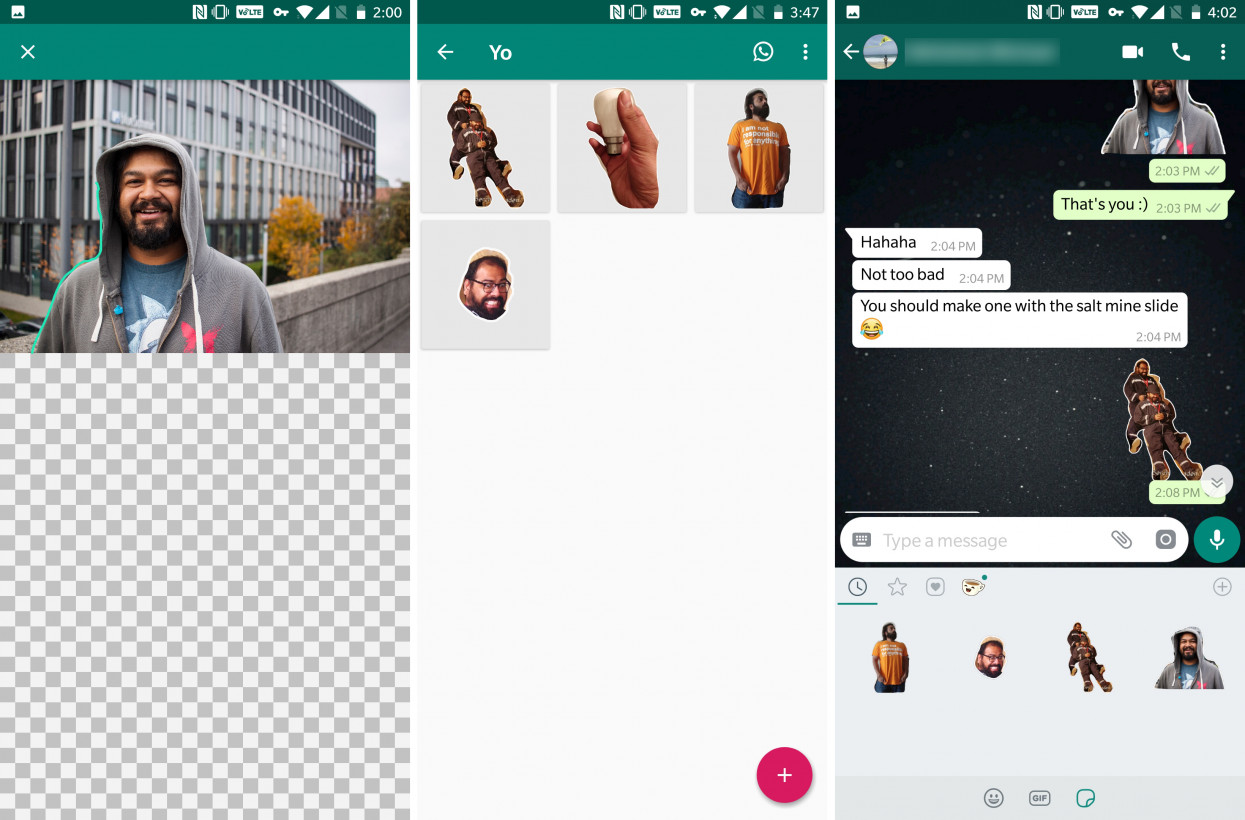
Turn any photo into a WhatsApp sticker with this free Android app


WhatsApp finally introduced stickers on its platform only last month, and offered a bunch of sticker packs that were previously available on Facebook Messenger. But if you’re on Android, you can easily create your own stickers right on your phone.
That’s thanks to Sticker Studio, a free app built by Sven van der Zee, a former TNW Index development intern. You can snap photos or import images into it, and simply draw an outline around the portion you want to turn into a sticker.Visit Hard Fork.


There are a couple of odd restrictions to deal with, though: you’ll need to create at least three stickers before you can export a pack of them into WhatsApp. You’re limited to 10 sticker packs with a maximum of 30 stickers per pack.
Still, it’s plenty fun for folks who have colorful people in their lives. I’m in a bunch of group chats, and I found the app useful for clipping a meme-worthy picture of myself gritting my teeth in terror as I went down a steep slide in a salt mine (I’m not great with heights).
That’s about all you can do right now; Sticker Studio could use a bit more polish, and currently doesn’t allow you to resize images or add effects – but those features are in the works. And hey, it’s a lot easier than clipping images on your desktop and building an app just to share stickers.
Give it a go by grabbing the free app from Google Play.


Monday, September 17, 2018

how to send whatsapp without adding contact

how to send whatsapp without adding contact


Now you can send WhatsApp message to anyone who is not in your phone’s contacts. You can do it in two different ways which we are gonna see in this answer. Let’s get started.


Method 1: Recommended Method

Install WhatsDirect App from Google Play Store.

Accept the Terms & Conditions of the app by tapping “Continue” button.

You can see a tutorial now which you can skip or go through it.

Now you should be on the main screen.

Type the phone number along with the country code (see screenshot). 91 is the country code and the remaining is the phone number. you don’t need to enter any special characters such as “+”

Type the message you want.

Now hit the “Send Text” button on the app.

It will take you to the WhatsApp app. If you wish, you can edit your message there. Now hit the “Send” icon to send the message.

Method 2:

Open the web browser and then paste the following on the Address bar: https://api.WhatsApp.com/send?ph...

In the place of “number”, you need to provide the phone number with the country code (don’t enter any special characters).

For instance, you need to provide the number like this: https://api.WhatsApp.com/send?ph...

Click on “Message” button.

It will take you to the WhatsApp Web. Scan the QR code to log in (open WhatsApp on your phone > tap Overflow menu > WhatsApp Web).


Now you can see that a chat is opened for the number you provide.

Thursday, August 30, 2018

How to check PNR status using WhatsApp

How to check PNR status using WhatsApp


All users need to do is drop a WhatsApp message and they will get all the updates on their smartphones in a jiffy. To get live train running status on WhatsApp follow these simple steps:

Step 1: Firstly check if your phone has the latest version of WhatsApp. If you aren't sure you can look for the updates on Google Play Store or App Store and update the app if required.


Step 2: Go to your smartphone's contact book and save MakeMyTrip's number, which is 7349389104.


Step 3: Now open WhatsApp on your smartphone and look for MakeMyTrip (i.e.) your recently saved contact.


Step 4: Open the MakeMyTrip chat window and enter the train number to check the live train running schedule. You can also send the PNR status to check your reservation status.

TAGS:- pnr status whatsapp number

train status whatsapp number

indian railway whatsapp number for live status

live status whatsapp

train whatsapp group

pnr status and coach position

pnr status by whatsapp

train live station whatsapp number

Page navigation


Monday, August 20, 2018

How to delete your WhatsApp data from Google Drive

How to delete your WhatsApp data from Google Drive


Google Has recentybeen facing the heat for tracking users' location even when they have turned off the the location. Amid all that, the issue of users' data privacy has again caught people's attention as it affects some two billion users of devices that run Google's Android operating software and hundreds of millions of worldwide iPhone users who rely on Google for Maps or search.
Among all the things that Google stores for us, there is also our WhatsApp data that has recently seen a policy change. All your chats -- that also include heavy multimedia files as well -- will no longer occupy space in your Google Drive. This means that all your chats messages, photos, and videos on WhatsApp will be synced with your Google Drive using a Google account but will be stored without using up the limited 15GB of Google Drive space that you get.
But given that there is always a risk of privacy infringement and data theft, your data is never completely safe if it's stored in Cloud. Follow these steps if you want to remove WhatsApp data from your Google Drive:
1. Go to Google Drive website (https://drive.google.com) on your desktop and log in to your Google account
2. If you are accessing this URL via your smartphone, tap on the top left corner and select the "Desktop Version"
3. Click the Gear icon in the top right corner


4. Open Settings and look for Manage Apps


5. Scroll down to find WhatsApp


6. Wait for the “Hidden app data” size to appear below the WhatsApp Messenger

7. Click on Options and tap on Delete hidden app data
8. The Drive will confirm with you one final time saying, "xGB of hidden app data from WhatsApp Messenger will be deleted from Drive. Tap on Delete to confirm.


FOR MORE 

Tuesday, August 14, 2018

Jio Phone 2 to Be Available on August 16 via Flash Sale

Jio Phone 2 to Be Available on August 16 via Flash Sale

Jio Phone 2 Bookings from August 16: Jio Phone 2 vs Jio Phone differences in price, specifications, design, battery, software, and more

ITECHEVER


Jio Phone 2, the successor to the highly popular Jio Phone, will become available for purchase in India starting August 16. The new handset, which sports a QWERTY keyboard, will be up for grabs via a flash sale, which hints at limited stocks. The Jio Phone 2 flash sale will be held only on Jio.com at 12pm. Interestingly, RIL Chairman Mukesh Ambani had said at the company's 41st AGM that the model will become available for grabs on August 15, but it looks the plans have been pushed to a day later. The Jio Phone platform is also receiving YouTube, while the release of WhatsApp will be in batches. Registrations for Jio GigaFiber, however, are slated for August 15 only, via Jio.com and MyJio app.


Jio Phone 2 price in India, booking details, specifications
As announced at Reliance Industries' 41st Annual General Meeting (AGM), the Jio Phone 2 price in India has been set at Rs. 2,999. The Jio Phone 2 price in India is Rs. 2,999, which users will have to pay while placing the pre-order. The company hasn't revealed any details on the part of its Jio Phone 2 shipments. We can safely speculate some delay in the delivery as there is likely to be a huge demand for the affordable feature phone that sports a QWERTY keyboard and features such as Google Assistant integration and WhatsApp support.

The dual-SIM (Nano) Jio Phone 2 runs KaiOS and features a 2.4-inch QVGA display. Under the hood, there is 512MB of RAM and 4GB of onboard storage that is expandable via microSD card (up to 128GB). The phone has a 2-megapixel rear and a VGA front camera. Also, it supports connectivity options such as 4G VoLTE, VoWi-Fi, Bluetooth, GPS, NFC, and FM radio. There is a dedicated button for voice commands that helps you activate Google Assistant while on the go. Besides, the phone packs a 2000mAh battery.

BUY FROM JIO


Friday, May 11, 2018

Monday, April 16, 2018

"Top 10 Best Security Google Chrome Extensions You Need to Install Now"

"Top 10 Best Security Google Chrome Extensions You Need to Install Now"


1. TunnelBear VPN

You’ve probably heard a lot about virtual private networks (VPN). In case you’re unfamiliar with them, picture a tunnel between your device and the website you’re visiting. This tunnel is a form of encryption, meaning any personal information sent between the two is scrambled. Without it, you might be victim of intrusion, including man-in-the-middle attacks (MITM).Chrome is already one of the safest browsers available, but it’s somewhat inferior to Opera because the latter boasts its own in-built VPN. TunnelBear bolts on this extra level of privacy.

Search for “VPNs” in the Chrome store and you’ll see vast amounts of them. It’s very easy to fall in love with Tunnelbear though. Over 20 million users across multiple platforms agree. Its creators appear to have good morals on their side, so don’t log any data and publish security audits carried out independently by third parties.

2. No Script Suite Lite

JavaScript is a programming language that forms the foundations for much of the internet in its current form. It’s an important part in our browsing experiences, and also forms the backbone of apps and online infrastructure. You can see why would-be programmers continue to learn it, and why many consider it the language of the future.
But sometimes, it’s a bad thing.

Why? It can hide malicious activity, including snooping and ransomware. You could simply disable JavaScript, but functionality will decrease. Facebook won’t look right (if it shows up at all); comments sections won’t load (although that can be a positive); most seriously, YouTube and Netflix won’t work.
Nightmare.

It really is a catch-22. Much of the web won’t function properly without it; but by enabling it, you leave yourself open to all sorts of issues, most notably malware.

No Script Suite Lite is a solution to this problem.

It limits the sites that run JavaScript solely to the ones you trust. Just add them into your whitelist and you can carry on surfing. If you’re worried you’re not experiencing a site to its fullest but you’re not certain enough to add it to your trusted list, you can also toggle the extension on and off in the toolbar.

No Script Suite Lite is best when running in conjunction with Webutation, Netcraft Extension, or a similar security add-on.
Download: No Script Suite Lite

3. Unshorten.link 

Shortened links were all the rage a little while ago. Now, you don’t see them so often. But they’re deceptive: you’ll still find them on social media, and affiliate schemes (Amazon, for instance).

Pages use them either as a quick way to redirect readers without including a lengthy URL or to hide the endpoint of a link. It’s the latter you should be worried about. You could end up on a suspicious website, downloading malicious software.

Unshorten.link does exactly what it says on the tin. Whenever you click on a condensed URL, you’ll be sent to a “filter page” that shows you the full address. This might mean nothing to you, which is why you can choose to see a full screenshot of the destination.

Most importantly, it checks the link and warns you if it detects malware. You can choose not to see the filter page if Unshorten.link deems it safe too.

It might not be used all that frequently, but you may be surprised. And when it is used, you’ll be thankful for it. 
Download: Unshorten.link

4. LastPass 

Or maybe you’d prefer to use the most popular password managers available.

You might recall the name, even if you’re not au fait with the software. That’s because it’s hit the headlines a couple of times in the past few years, causing some to abandon ship. But right now, nearly 7 million users still trust it.

There were fears over CPU exploits, Meltdown and Spectre, which affect LastPass; further back, Google Project Zero found a vulnerability in the password manager.Realistically, all software has vulnerabilities. What matters is how swiftly the companies react to them; typically, if an update is offered, you should install it. LastPass has rolled with the punches, so we don’t see any reason you should avoid it.

It basically does the same stuff Blur does, except offers an extra layer of customization in its vault.

Yes, there are concerns. As the most popular manager, it attracts a lot of hackers. Its security, though, is top-notch.

Brute force attacks are rendered virtually pointless, as LastPass doesn’t store your password. Instead, it verifies your identity using a one-way salted hash, then allows access to your vault using your decryption key (always stored on your device). Further encryption methods are used to when data is in transit.

This is a very strong system. Due to its swollen userbase, you’ll hear about any potential (and comparatively rare) problems sharpish and then be notified by LastPass about what to do. In most cases, it’ll involve updating and changing your master password.
Download: LastPass


5. Click&Clean

This is simply one of the best Chrome security add-ons of all time. Yes, really. That’s because it’s quick, easy, and thorough, making your browsing sessions secure and private.

Click&Clean lets you delete all your private data with a single click. This can either be done en masse, or by selecting individual items. You can even choose the timescale that you wish to delete. You just select the icon in the toolbar and its menu will pop open: this has a Windows 10-like design so is eye-catching and colourful. All it takes to close your browser and delete browsing history is one click. In an emergency, this is essential.our options are extensive, meaning you can get rid of your download history, cache, saved passwords and form data via cookies, and lots more. That’s just from the Main tab; by switching, you can access information stored by other add-ons!

There are two added options that make Click&Clean extra special: password generation, which creates alphanumerical digits for any specified lengths; and clearing data from Incognito Mode.You read that right: in-private browsing isn’t completely anonymous. Of course, ISPs can still track you, and there’s nothing you can do about that. But Click&Clean at least allows you to clear temporary files left on your PC by the sites you visit in order to recover data should a fault occur. 
Download: Click&Clean

6. Panic Button


The easier you can browse securely, the better. That’s why one-click extensions are so popular.

Panic Button takes this principle and applies it to your tabs. Just press a keyboard shortcut (thankfully customizable) and your tabs disappear. They then reset to a “safe page”, i.e. whatever page you want displayed in emergencies.

Fortunately, you’ve not lost those tabs! They’re stored in a list, which you can protect from prying eyes behind a password.

Obviously, this is designed for anyone viewing private stuff on their PC, be it for Christmas shopping or something more scandalous. It has a security purpose too.


Panic Button’s list of tabs will include additional ads that have popped up in the background. Instead of restoring the full list, you can solely reopen the ones you actually mean to.
Download: Panic Button

7. Webutation

For a while, Web of Trust (WOT) was the go-to add-on for reputability scores. Icons appear to show you which sites are secure. However, in late 2017, users realized the consequences of the extension’s privacy policy, and began uninstalling. WOT promised to tighten things up, but until then, Webutation will see you right.n the top right-hand corner, a shield will appear, rating the page out of 100. This shield is also color-coded, so you can easily avoid sites rated in red; be wary of those in yellow; and happily continue as intended when you see green. Anything that’s especially dangerous will flag up a special message that will let you proceed regardless or safely return to your search.

You can also block access to adult websites, and any deemed “bad” by the system.Webutation’s ratings factor in a number of sources in its algorithm, but as an open community, it relies on its userbase. Click on the icon and you can find out more about the site on webutation.net, which also allows you to leave your own rating.

Obviously, you might not know whether a site really is a malware risk. That’s why Webutation checks for SSL certificates, and scours other tools, including Google Safe Browsing, Norton Antivirus, and phishing blacklists. It also takes social reputation into consideration—if the site has an extensive, properly cited Wikipedia page, that’s taken into account.
What makes this the natural successor to WOT? The fact that its algorithm also bases its ratings on the WOT Ratings Community! You get all the best stuff from that other popular extension, plus additional safety checks.
Download: Webutation

8. Credit Card Nanny


This sounds like a cash-loan company, but actually, it’s a perfect companion to HTTPS Everywhere.
SSL/TSL certificates give us peace of mind, yet we shouldn’t trust them completely. Encryption is utterly pointless if your password is then communicated to administrators as Clean Text.

There are various means of storing private information, but Clean Text literally means that your password is readable. There’s no subsequent encryption; no hashing; and no cryptographic nonce involved. If your password is “password123” (and we really hope it isn’t), it’s stored on servers as “password123”. The site’s system could get hacked and your details could be read as easily as a book.
That’s worrying, but it’s even more concerning if it does the same with payment information!

It’s not done maliciously. Mostly, it’s through ignorance.

Credit Card Nanny detects forms that send your private data in Clear Text form. If you visit a suspect site, a warning will come up and advise you to contact the owners to tell them they need better security measures. Of course, you can bypass the message and continue if you don’t think the information is important enough to warrant a solid level of privacy. At least you’re aware it’s a concern.

Download: Credit Card Nanny

10. HTTPS Everywhere


We talk about this a lot, but that’s because it’s excellent at what it does. Most people use encryption, although in limited capacities: your iMessages, for instance, are encrypted, as are SMS messages you send via WhatsApp. It means information sent from one party to another is scrambled; anyone who intercepts can see randomized data, rendered unreadable. This is essential for e-commerce.Everyone needs encryption, particularly when visiting sites that require personal information. Don’t trust a page that asks for passwords but isn’t encrypted. But how can you tell? Just check out the address bar: if the beginning reads “HTTPS”, that’s a sign of encryption. Indeed, the extra “S” means “Secure”. It all depends on the site using an SSL/ TSL certificate to ensure authenticity.

HTTPS Everywhere automatically switches thousands of sites from their “HTTP” copies to their securer “HTTPS” versions.

It doesn’t work on everything, however. For smaller sites without SSL certificates, you’ll see a privacy error—in which case you’ll need to disable the extension for that site only. You risk your security by doing so, but just because a page doesn’t have an encrypted alternative doesn’t necessarily mean it’s dodgy.

Nonetheless, the positives of HTTPS Everywhere far outweigh the negatives: it means that e-commerce sites, or any system that needs personal information, is afforded an extra layer of protection.
 Download: HTTPS Everywhere
How Use WhatsApp on the Web, How Use on desktop,Laptop

How Use WhatsApp on the Web, How Use on desktop,Laptop


WhatsApp is now available on the web and in a tablet app, meaning it's possible to simultaneously access your WhatsApp account on your phone, tablet, laptop or PC without a hack. Here's how to get WhatsApp on your phone, tablet, laptop AND your PC, all at once. iPhone support has also been announced by the company, so iOS users can now access WhatsApp Web.

WhatsApp is now available on the web via the Chrome browser, and in a tablet app, meaning it's possible to simultaneously access your WhatsApp account on your phone,tablet, laptop and PC without a hack. Here's how to get WhatsApp on your phone, tablet, laptop AND your PC, all at once. To physically install the WhatsApp app on your tablet also see: How to install WhatsApp on iPad: Get WhatsApp on your tablet or read How to install WhatsApp tablet app below.
WhatsApp Web: Before you begin 

WhatsApp Web limitations

Note that for now WhatsApp on the web works only with Android, BlackBerry, Nokia and Windows phones, and as of August 2015, iOS users. You must also be using the Google Chrome web browser, and make sure you are running the latest version of WhatsApp (in Android, launch the Google Play Store, tap the three lines icon at the top left, choose My apps and check whether an update is available for WhatsApp). Also see: WhatsApp ban - what you should know and New WhatsApp charging scam surfaces.

WhatsApp privacy flaw

According to 17-year-old security researcher Indrajeet Bhuyan, a bug within WhatsApp on the Web allows complete strangers to view your profile picture even if you have chosen to keep it hidden. He also notes that images are not blurred out in the conversation thread once they have been deleted by the user, suggesting the WhatsApp mobile and desktop platforms are not yet synched correctly.  

WhatsApp Web iOS Support

Though WhatsApp originally claimed that WhatsApp Web wouldn't be available for iPhone or iPad users due to restrictions in its iOS system, the company has quietly added support for the service. If you head over to the official WhatsApp Web page, you'll notice that "iPhone" has been added, though the company has yet to officially announce support.
The update seems to be rolling out gradually, and iOS users can see whether its been activated for their accounts yet by accessing the Settings menu. Once accessed, you should see a "WhatsApp Web" menu - if not, sit tight and check again in a few hours.

How to use WhatsApp on your PC, how to use WhatsApp on your laptop, how to use WhatsApp on your tablet


Step 1. Using WhatsApp in your web browser couldn't be easier. On your computer or tablet launch the Chrome browser (other browsers are not supported) and head to https://web.whatsapp.com. We tried this in OS X; it should work on any platform other than iOS using the Chrome browser and ensuring you are viewing the desktop site if you're doing so on a tablet. A QR code will pop up onscreen on your PC. You do not need a QR reader installed on your phone to read this. Note that if you're using a tablet you will need to request the desktop site in Chrome's settings (and no, this won't work in Chrome on an iPad, even if you have an Android phone).


Step 2. Launch WhatsApp on your phone and access the settings menu (click the three dots at the top right to access more options on an Android device), then choose WhatsApp Web. 


Step 3. A QR reader will then open on your phone; point this at your PC screen to read the code and be automatically logged into WhatsApp on the web.


EN-US X-NONE HI MicrosoftInternetExplorer4
Step 4. The interface will be familiar to WhatsApp phone users, but you should note that desktop notifications are supported, which you may want to switch off in the settings menu for privacy reasons if this is a shared PC. As on the phone, tapping the three-dot icon brings up more options. Select Notifications and then deselect Desktop Alerts and Sounds.

POPULAR

Facebook

Ads